

Step 5 of 5 – app walkthrough – discover all awesome functions
If you have additional questions about your Catit PIXI Smart Fountain, please check our help and advice page.
Please note that the app features below can only be accessed once you set up your Catit PIXI Smart Fountain and paired it with the app as shown in our Setting up your PIXI Smart Fountain blog.
Continue reading to learn about each of the app’s features, or use one of the quick-links below to jump ahead:
5.1 Overview
5.2 Filter replacement
5.3 Pump maintenance
5.4 Energy-saving mode
5.5 UV-C Water clarification
5.6 Timer
5.7 Power
5.8 Help & Advice
5.9 Delete a device
5.10 Share your device
5.11 Manage your shared devices
5.12 Update firmware
5.13 Enable notifications
5.14 View history
5.15 Do Not Disturb schedule
5.1 Overview
Select your Catit PIXI Smart Fountain on your app’s home screen to get an overview of its features and status. Don’t see any devices listed in your app? Please add your Catit PIXI Smart Fountain first.

5.2 When to replace the filter
The Catit PIXI app will alert you when it’s time to replace the filter (once every 30 days). Manually reset the counter in your PIXI app once you have replaced the filter.
Tip: Enable notifications in your phone settings to also receive reminders outside of the app.

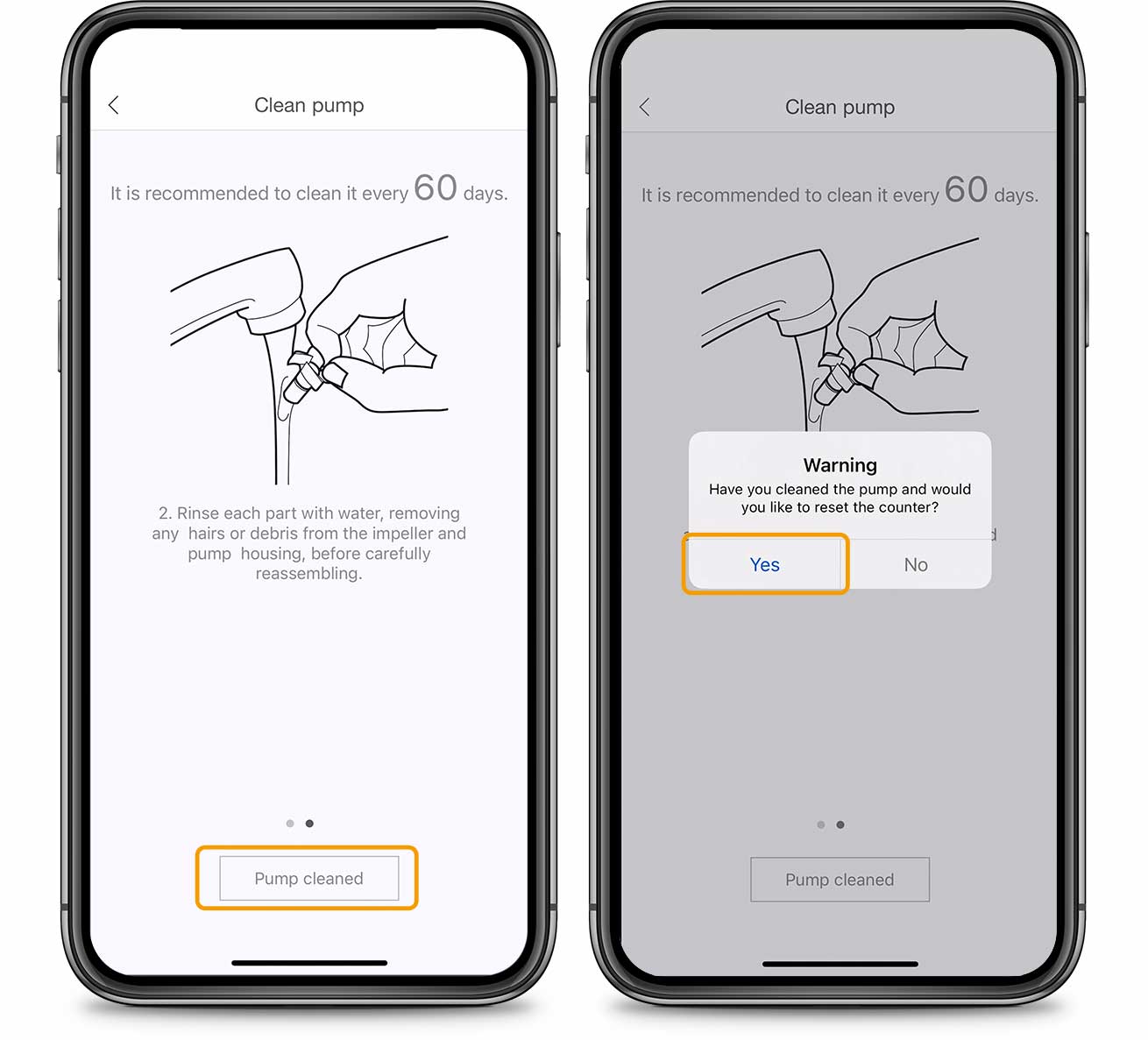
5.3 When to clean the pump
Every 60 days, the Catit PIXI app will help remind you to clean the fountain pump. Manually reset the counter in your PIXI app once you are done cleaning.
Tip: To also receive reminders outside of the Catit PIXI app, go to your phone settings and enable notifications.

5.4 Energy-saving mode
Toggle the switch to (de)activate energy-saving mode. This mode will make the fountain run for 5 minutes and afterwards pause it for 15 minutes to save power.

5.5 UV-C water clarification
The Catit PIXI Smart Fountain will automatically clarify the water for one hour, once every 7 hours. It is also possible to start the water clarification process manually by simply toggling the ‘Start UV-C Water Clarification’ switch.

5.6 Timer
You can set a timeframe during which the fountain should be operational. The fountain will be inactive for the rest of the day.

5.7 Power
Tap this button to turn off the fountain pump. Make sure to select ‘yes’ when asked to confirm.

5.8 Help & Advice
When tapping the question mark button, you get a brief overview of the different LED color alerts and their meaning.

5.9 Delete a device
To delete a device, go to the app’s home menu, swipe the device to the left and confirm.

You can also delete a device in the Settings menu, by tapping ‘Delete device’ (the red option at the bottom). Next, press ‘OK’.

5.10 Share your device
It’s possible to share control of your Catit PIXI Smart device with your friends or family, so that they can help care for your cat. Sharing means they will be given the same access to your device’s features as you have.
To start sharing, go to ‘Account’ and select ‘Share’.

Select the device and tap ‘Share’.

Ensure that whomever you are sharing the device with has already created an account on the PIXI app. Put in the email address that your friend’s account is linked to and press ‘Share’. Your PIXI Smart device will now appear in your friend’s app.

5.11 Manage your shared devices
For an overview of the people you are sharing Catit PIXI Smart devices with, go to ‘Account’ and tap ‘Share’.

To stop sharing your device with someone else, select their email from the list and toggle the switch next to the device to the off position.
Toggle the switch back on to start sharing the device with them again.

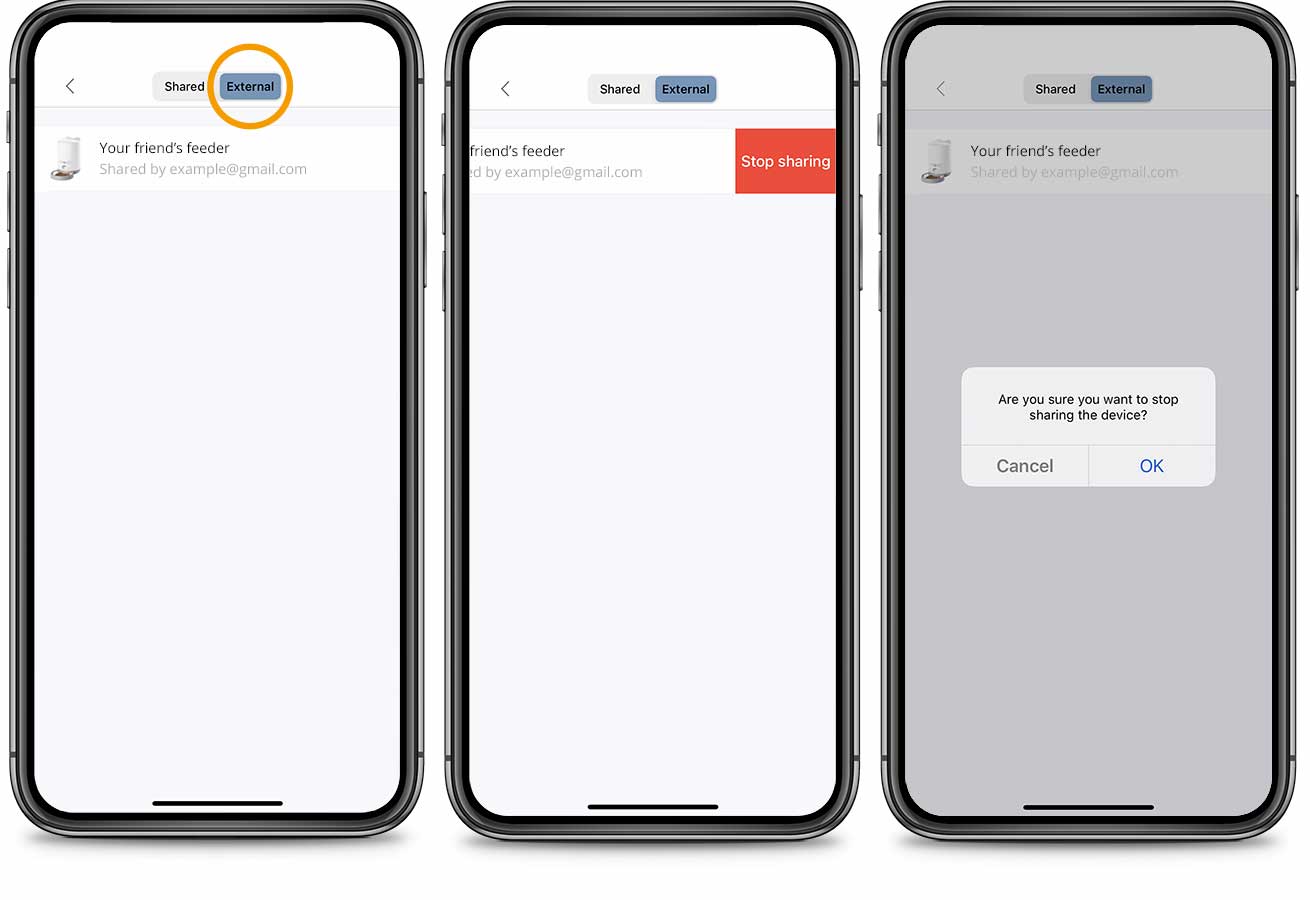
To stop sharing devices that belong to someone else, open the ‘External’ tab and swipe the device to the left. Tap ‘Stop sharing’ and confirm.
5.12 Update firmware
Important: Ensure your Catit PIXI Smart device remains connected to a power source during the firmware update, until completion. If the power is interrupted during a firmware update, the device will no longer function.
When there is a firmware update available for your Catit PIXI Smart device, you will receive a notification (if you have notifications enabled), and a red dot will appear alongside the device in the app’s home menu.
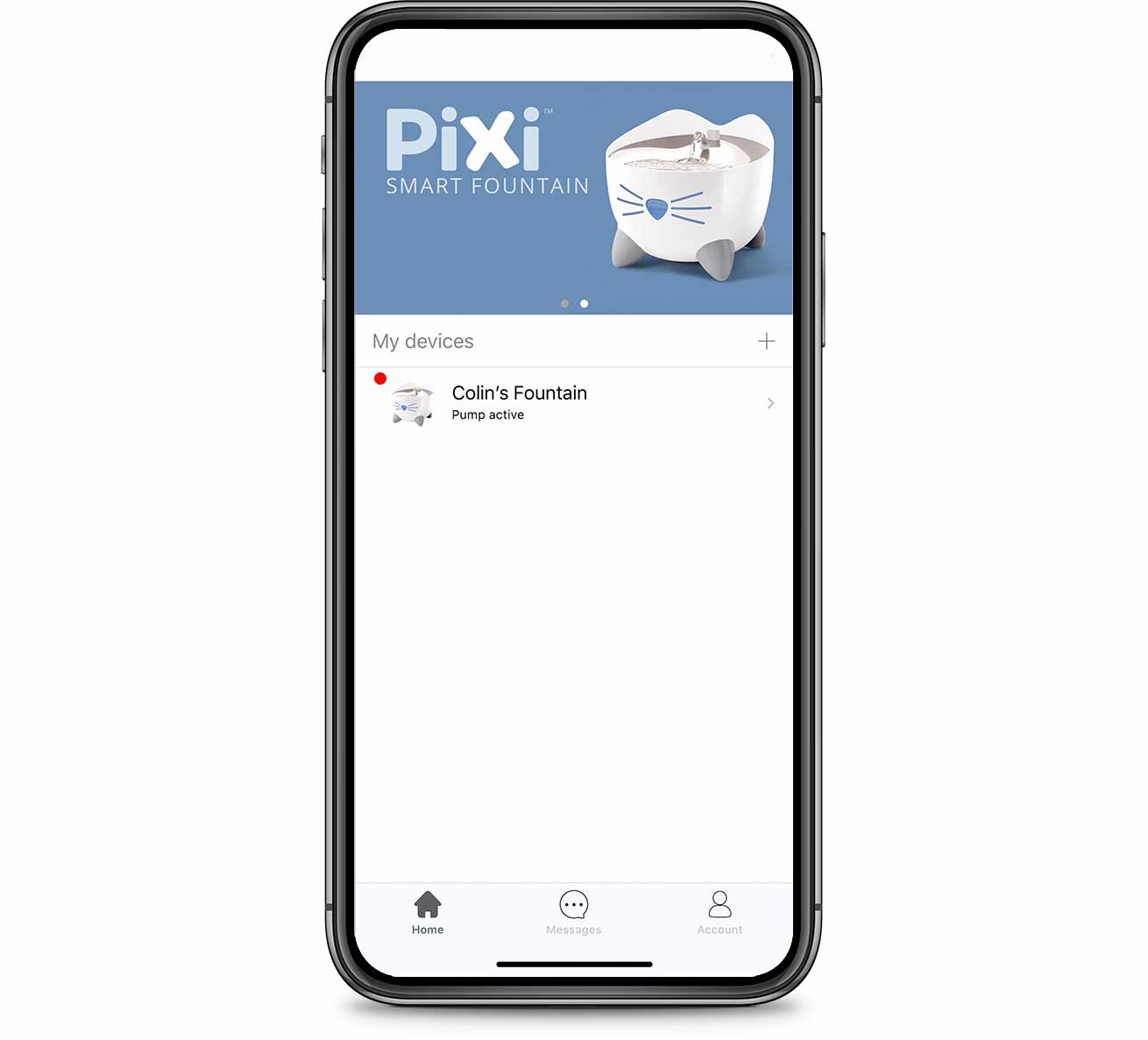
To update your Catit PIXI Smart device’s firmware, tap the name of your device. Next, press the cog in the top right corner and tap ‘firmware version’.

5.13 Enable notifications in your smartphone’s settings
For iPhone: Go to your smartphone settings and scroll all the way down to the last section of the page, until you see the PIXI app. Select the app to manage notifications and choose in which places you want them to appear.
For Android: Go to your phone settings. Next, tap Apps & notifications > See all apps. Scroll down to find the PIXI app. After you tap the PIXI icon, you can allow notifications. Important: Settings can vary between phone types. For more info, contact your device manufacturer.
Would you like to know what kind of messages to expect from your Catit PIXI Smart Device? Here is a list of notifications per product:
Catit PIXI Smart Fountain
- Water level alert – lets you know when the fountain is running low on water or has run empty and needs refilling. Message repeats every 4 hours until the water is topped up.
- Filter replacement alert* – lets you know when to replace the filter (every 30 days).
- Pump maintenance alert* – helps remind you to clean the pump (every 60 days).
* Manually reset the counter in your PIXI app once you have replaced the filter or cleaned the fountain pump.
5.14 View history
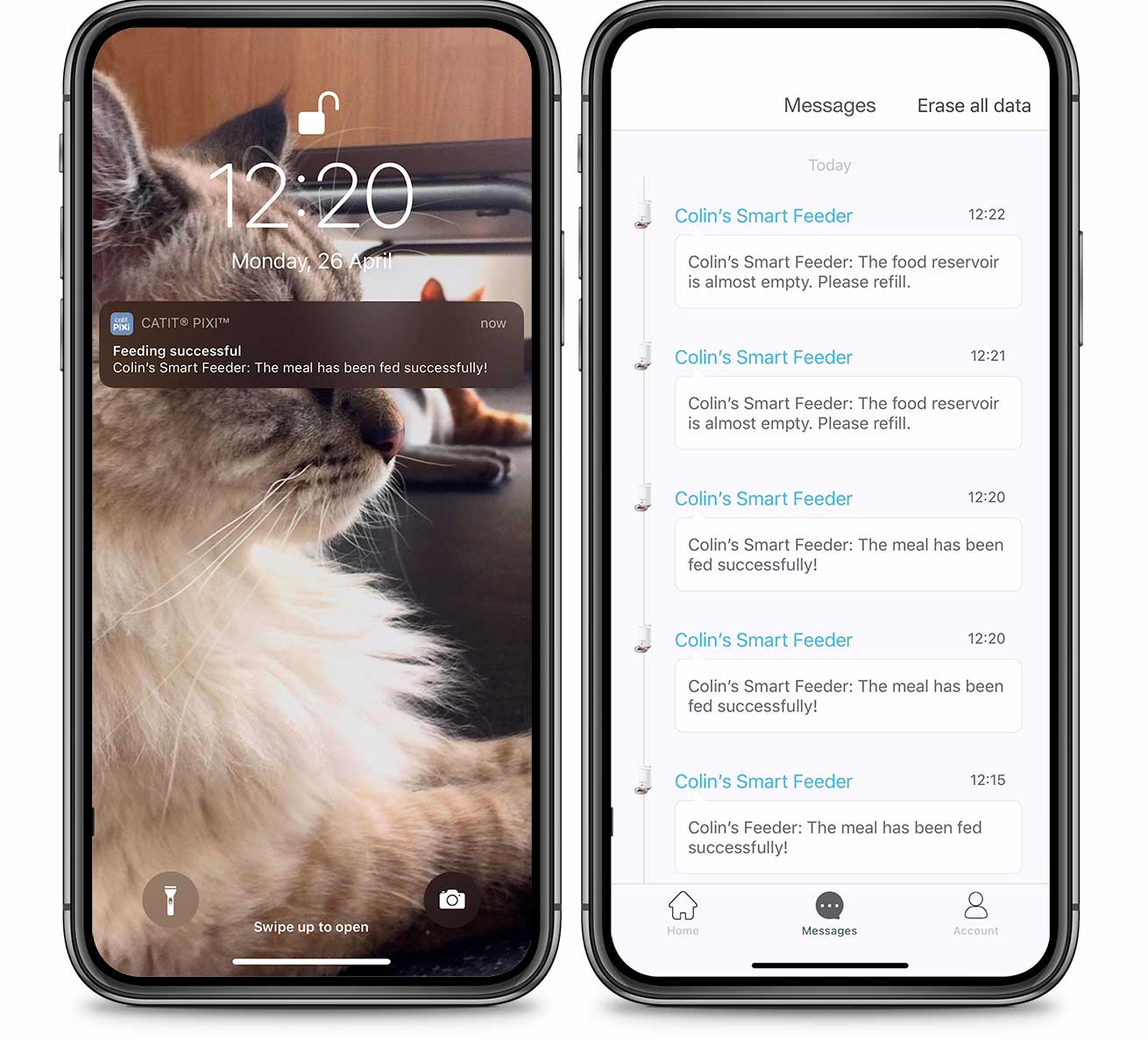
For an overview of all recent notifications, select ‘Messages’ in the app.
5.15 Do Not Disturb schedule
While mobile notifications come in handy when you’re on the go, you may not want to receive these updates when you’re at home. The Do Not Disturb feature allows you to set a timeframe during which you won’t receive notifications from a particular or any of your Catit PIXI Smart devices.
In the app’s home screen, tap ‘Account‘ and navigate to ‘Do Not Disturb schedule‘. Select ‘Add Do Not Disturb schedule‘.

The timeframe you enter will apply to all your Catit PIXI Smart devices by default. To select an individual device, tap ‘All devices‘ and toggle ‘Selected devices‘ on the next screen before selecting your preferred device(s). Go back using the arrow at the top left.

Select on which day(s) of the week you want the Do Not Disturb schedule to be active. Blue dots represent active days. Tap them to deactivate. Once you press ‘Save‘, your weekly schedule will be repeated indefinitely.

Next, set the start and end time of your Do Not Disturb schedule and tap ‘Save‘ at the end.

You need to create a new Do Not Disturb Schedule for each timeframe you want to add. You can do so by tapping ‘Add Do Not Disturb schedule‘.
Step 5 completed – Mission accomplished
Now you know everything you need to know about the PIXI Smart Fountain! Still have questions about your device? Go to the PIXI Smart Fountain Q&A page or return to the PIXI Smart Fountain Help & Advice page to find all the information you need.


